Trading
Place trades on Polymarket prediction markets, manage positions, and protect your capital with conditional orders.
How Prediction Markets Work
A prediction market asks a yes/no question about a future event. You buy YES or NO shares.
- YES shares pay $1.00 if the event happens.
- NO shares pay $1.00 if it doesn’t.
- Prices reflect probability. YES at $0.65 = 65% implied chance.
- Profit = payout minus what you paid.
Example: Buy 100 YES shares at $0.40 (cost: $40). Event happens: you receive $100. Profit: $60. Event doesn’t happen: shares worth $0, you lose $40.
Placing a Trade
- Find a market from Hot Bets, Discover, or the Markets page.
- Click Bet to open the trade modal.
- Select your outcome (YES or NO).
- Choose order type: Market or Limit (live mode only).
- Enter your USDC amount. Use the quick presets ($5, $25, $50, $100, $500) or type a custom amount.
- Review the summary: shares, average price, potential profit.
- Click Buy [Outcome] to execute.
Order Types
| Type | How It Works | Best For |
|---|---|---|
| Market (FOK) | Fill-or-Kill. Executes at current price or fails entirely. No partial fills. | Quick trades, immediate execution |
| Limit (GTC) | Good-Till-Cancelled. You set a specific price. Sits on the order book until filled or cancelled. | Getting a better price when you can wait |
Limit orders are only available in live mode, not paper trading.
Limit Order Details
When placing a limit order:
- Set your price between 1c and 99c.
- The modal shows how far your price is from market (e.g., “30% below market”).
- Minimum 5 shares required for limit orders.
- If you’re closing a full position, you must use a market order.
Minimums
| Order Type | Minimum |
|---|---|
| Market orders (buys) | $1 USDC |
| Limit orders | 5 shares |
| Sells | No minimum |
Paper vs Live
The trade modal respects your Paper/Live toggle in the top bar.
- Paper mode: Uses your $10,000 virtual balance. An amber “Paper Trade” badge appears on the modal.
- Live mode: Uses real USDC from your Safe wallet. Shows your available balance with a Max button.
After Placing a Trade
On success, the modal shows a confirmation with:
- Market title and outcome
- Order type and status
- Price, shares, and cost
- Order ID
- Links to View Order and View Positions
- Option to Place Another trade
Markets
Browse prediction markets from the Markets page or via search.
Categories
Filter by: Politics, Crypto, Sports, Finance, Entertainment, Science.
Sort Options
| Sort | Description |
|---|---|
| Volume | Most actively traded |
| Liquidity | Best spreads and depth |
| Newest | Recently created |
| Ending Soon | About to resolve |
| Whale Activity | Most whale participation |
| Hot Markets | Trending by volume + whale interest |
Sections
The Markets page organizes markets into three highlighted sections:
- Hot Markets: Highest whale activity right now (horizontal scrollable cards)
- Trending Markets: Gaining traction recently
- New Markets: Recently created with whale interest
Below these, a full paginated grid shows all markets with search, category filter, and sort.
Market Detail
Click any market to see:
- Live YES/NO prices (updated via WebSocket)
- Volume and liquidity depth
- Whale positions and recent trades
- Resolution criteria
- Direct trading interface (Bet button)
Positions
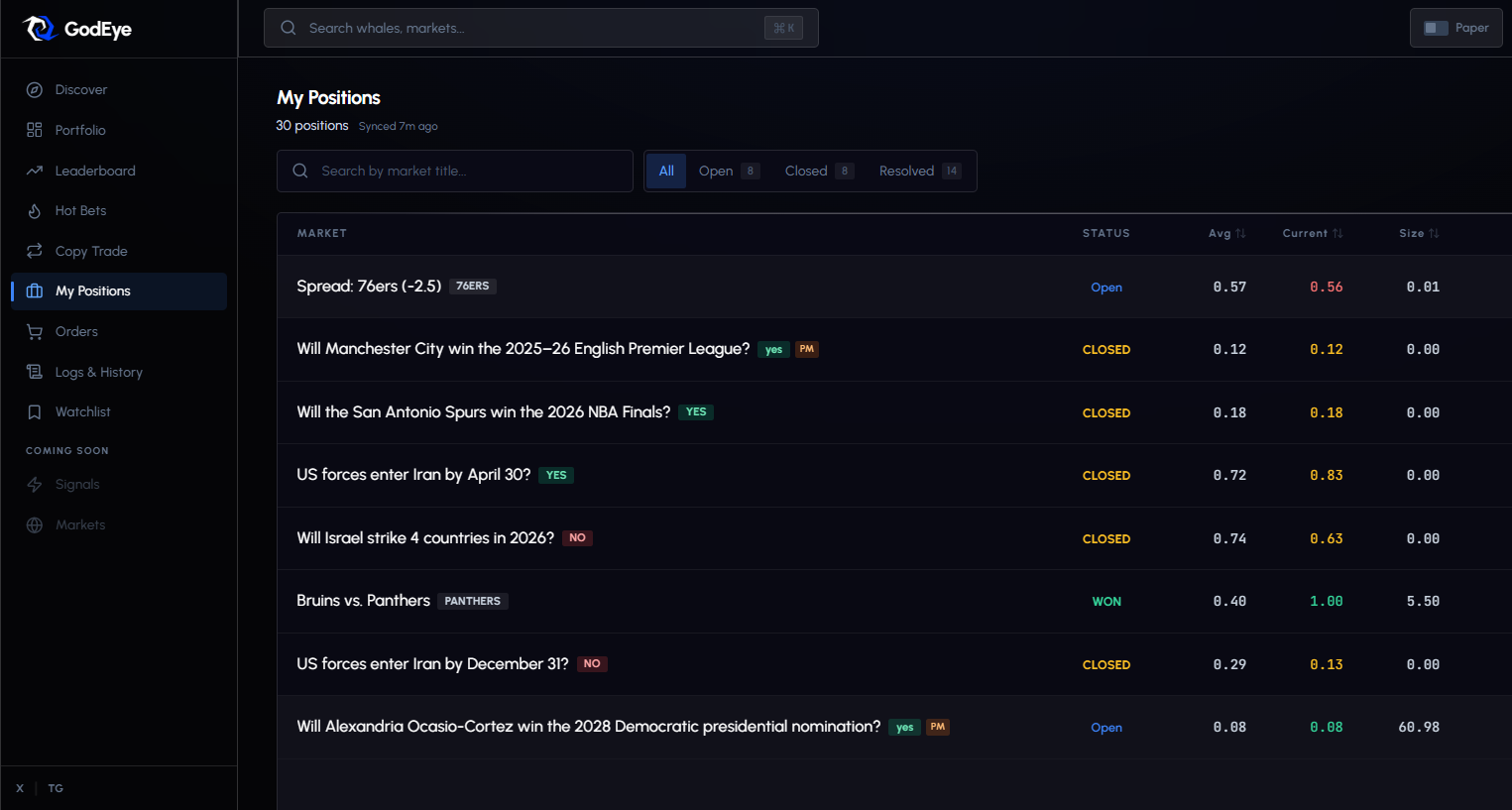
Track all your positions on the My Positions page.
Status Tabs
| Tab | Description |
|---|---|
| All | Every position |
| Open | Active, still trading |
| Closed | Sold before resolution |
| Resolved | Won, Lost, or Voided |
Position Card
Each card displays:
| Element | Description |
|---|---|
| Market title | Clickable link to Polymarket |
| Outcome badge | YES (green), NO (red) |
| Entry price | Your average purchase price |
| Current price | Live market price (green if up, red if down) |
| P&L | Unrealized profit/loss in $ (color-coded background) |
| Size | Total cost basis in USDC |
| Value | Current market value with % change |
| Copy Trade badge | Shows if position was created by copy trading, with source whale link |
| Protected badge | Shield icon if stop-loss, take-profit, or trailing stop is set |
| Expiration | Time until market closes (orange if 3 days or less) |
| Opened time | When you entered the position |

Resolved Outcomes
| Status | What Happens |
|---|---|
| WON | $1.00 per share. Green banner with settlement P&L. |
| LOST | Shares worth $0. Red banner with loss amount. |
| VOIDED | Market cancelled. Refund at your average price. “Claim Refund” button if not yet redeemed. |
Position Actions
Click the three-dot menu on any open position:
| Action | Description |
|---|---|
| Sell Position | Open the sell form (market or limit) |
| Add SL/TP | Set stop-loss, take-profit, or trailing stop |
| Edit Orders | Modify existing conditional orders (shown if orders already exist) |
| View on Polymarket | External link to the market |
Position Actions Detail
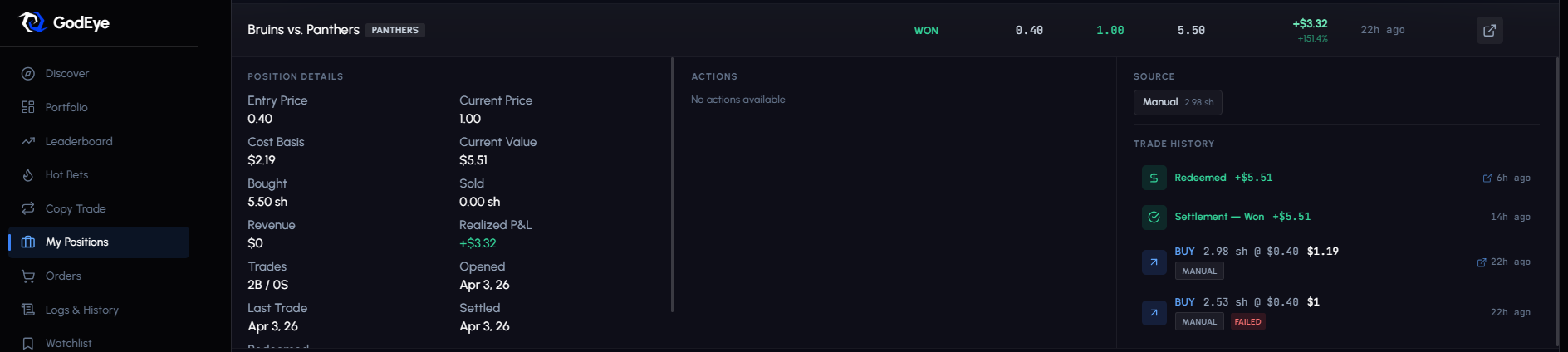
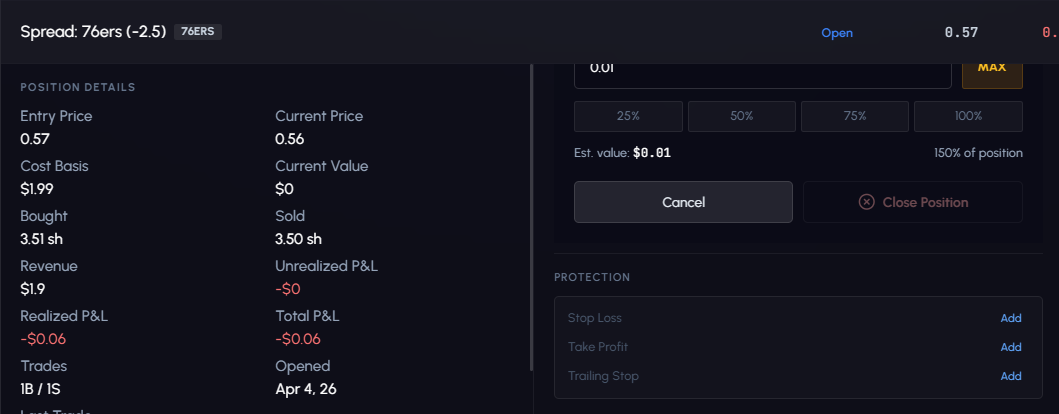
Selling a Position
Click Sell to open the sell form:
- Choose Market or Limit order (live mode only).
- Enter shares to sell, or use quick presets: 25%, 50%, 75%, 100%.
- For limit orders, set your price (1c-99c). Minimum 5 shares.
- Review estimated value.
- Click Sell (or Close Position if selling 100%).
Buying More
Click Buy More on any open position to add to it:
- Enter amount in USDC (minimum $1).
- Use quick presets: $5, $10, $25, $50, $100.
- Review estimated shares.
- Click Buy.
Sorting
Sort by: Last Trade, Opened, Cost Basis, Current Value, Price, P&L, Shares, or Avg Price.
Risk Management
Set conditional orders on any open position. They execute automatically when price conditions are met.
Stop-Loss
Sells if price drops below your threshold. Protects against large losses.
- Open the position’s menu and select Add SL/TP.
- Enter a trigger price (must be below current price).
- Click Set Stop Loss.
Example: Buy at $0.60, set stop-loss at $0.48. Price drops to $0.48: auto-sell.
Take-Profit
Sells when price reaches your target. Locks in gains.
- Open the position’s menu and select Add SL/TP.
- Enter a trigger price (must be above current price).
- Click Set Take Profit.
Example: Buy at $0.30, set take-profit at $0.45. Price hits $0.45: auto-sell.
Trailing Stop
Dynamic stop that follows price up but never down. Tracks the highest price reached (high water mark) and sells if price drops a set percentage below it. Set this from your copy config’s risk management section.
Example: Buy at $0.50, 10% trail. Price rises to $0.80, stop moves to $0.72. Price drops to $0.72: auto-sell. You lock in 44% gain.
Managing Conditional Orders
Active orders show on the position card with colored badges:
- Stop Loss: Red badge with down arrow
- Take Profit: Green badge with up arrow
- Trailing Stop: Blue badge with activity icon
Each order card shows: trigger price, current price, distance to trigger, and a warning if price is within 5% of the trigger.
Actions on active orders:
- Edit: Change the trigger price
- Cancel: Remove the order
Order Statuses
| Status | Description |
|---|---|
| Active | Order is monitoring price |
| Triggered | Price hit the trigger level |
| Executed | Position was sold |
| Cancelled | You cancelled the order |
| Failed | Execution failed (details shown) |
| Expired | Order expired (market resolved) |
Stacking Orders
You can set multiple orders on the same position. A stop-loss at 20% below entry + take-profit at 50% above entry defines your full risk/reward range.
Don’t set stops tighter than 5%. Normal price fluctuation will trigger them.