Notifications
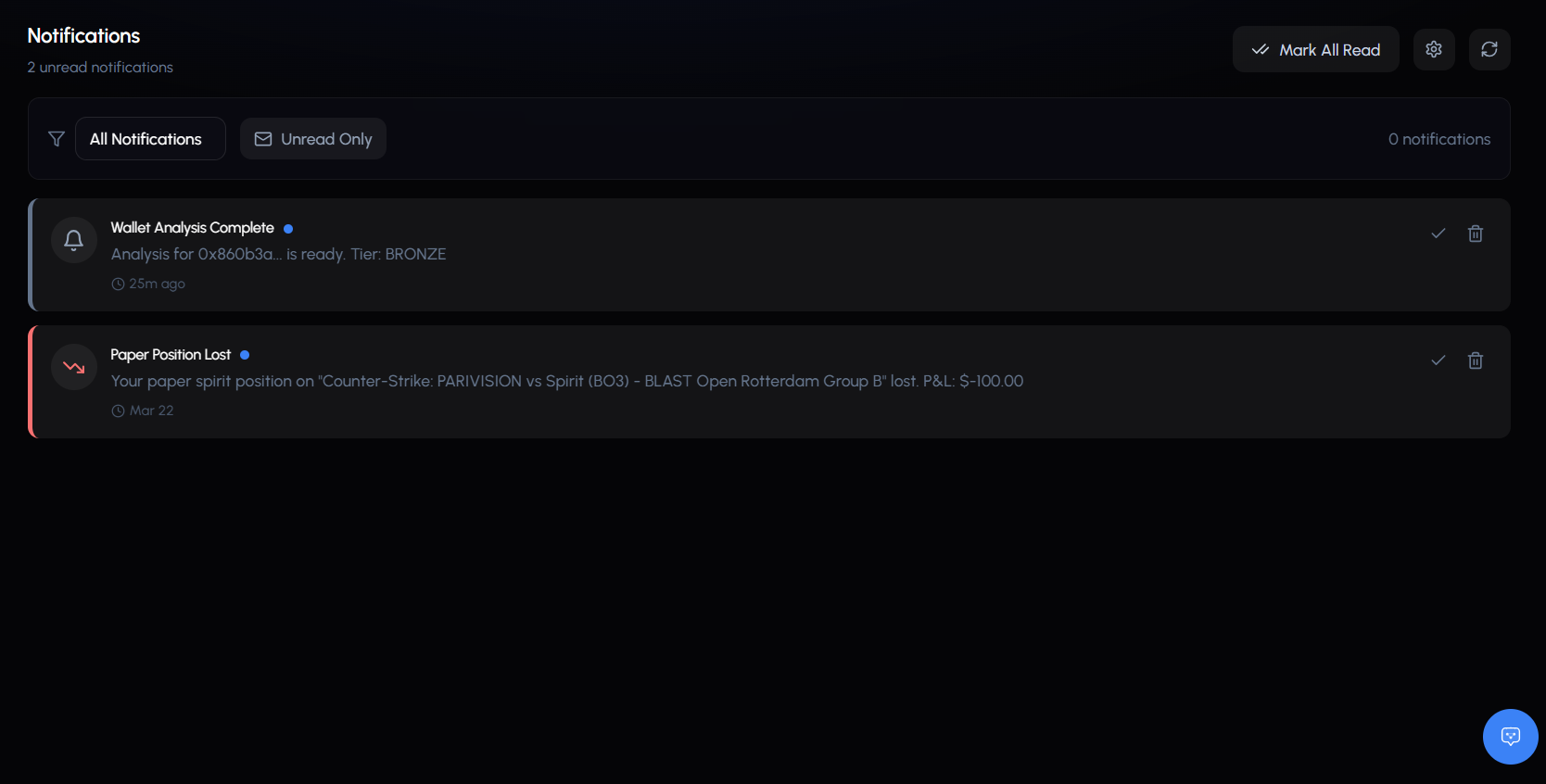
Stay informed about trades, positions, orders, and watchlist activity without watching the screen.
Notification Center
Click the bell icon in the top bar to open the dropdown.
| Element | Description |
|---|---|
| Unread badge | Count of unread notifications (shows “9+” above 9) |
| Dropdown | 10 most recent notifications |
| Mark All as Read | Clear all unread indicators |
| View All | Full notifications page |
| Settings | Link to notification preferences |
Each notification shows: a color-coded icon by type, title, message, relative timestamp (e.g., “5m ago”), and a read/unread indicator dot.
Notification Types
| Type | When It Fires |
|---|---|
| Copy Executed | Copy trade placed successfully |
| Copy Failed | Copy trade attempt failed |
| Stop Loss Triggered | Stop-loss fired on a position |
| Take Profit Triggered | Take-profit fired |
| Position Won | Market resolved in your favor |
| Position Lost | Market resolved against you |
| Whale Trade | Watched trader made a trade |
| Market Resolved | A market you hold a position in resolved |
Some notifications include metadata: trade amount, whale address (clickable), or market link.
Notifications Page
Access via bell dropdown > View All, or navigate to /notifications.
Filters
| Filter | Options |
|---|---|
| Type | All, Copy Trades, Failed Copies, Stop Loss, Take Profit, Position Won, Position Lost, Whale Trades, Market Resolved |
| Unread Only | Toggle to show only unread |
Actions
| Action | Description |
|---|---|
| Mark as read | Click any unread notification |
| Mark all as read | Button at the top (only shows when unread > 0) |
| Delete | Remove individual notifications |
| Refresh | Reload notifications |
Pagination for browsing older entries.
Notification Settings
Configure what you receive and how. Access via Settings > Notifications (gear icon in the bell dropdown).
Delivery Methods
| Method | Description |
|---|---|
| Push Notifications | Browser push alerts (requires permission) |
| Email Notifications | Alerts to your registered email |
Quiet Hours
Toggle on and set a start/end time. Non-critical notifications are silenced during this window. Critical events (security alerts, large losses) still come through.
Categories
Each category has individual toggles. Use Enable All or Disable All per category for quick setup.
Copy Trading
| Setting | Description |
|---|---|
| Copy Executed | When a copy trade is successfully placed |
| Copy Failed | When a copy trade fails to execute |
| Copy Paused | When a config is auto-paused (stop loss hit, etc.) |
Position Updates
| Setting | Description |
|---|---|
| Position Won | When a market resolves in your favor |
| Position Lost | When a market resolves against you |
| Position Settled | When a settlement is processed |
Conditional Orders
| Setting | Description |
|---|---|
| Stop Loss Triggered | When a stop-loss fires |
| Take Profit Triggered | When a take-profit fires |
| Trailing Stop Triggered | When a trailing stop fires |
| Order Expired | When a conditional order expires |
Watchlist
| Setting | Description |
|---|---|
| Whale Trade | Watched trader made any trade |
| Big Trade | Watched trader made a trade over $1,000 |
| Position Closed | Watched trader closed a position |
Markets
| Setting | Description |
|---|---|
| Market Resolved | Market you’re in resolved |
| Expiring Soon | Market about to expire |
| Price Alert | Market hit a price threshold |
System
| Setting | Description |
|---|---|
| Low Balance | Wallet balance below threshold |
| Weekly Report | Weekly performance summary |
| Security Alerts | Security-related events |
Tips
Enable Copy Failed alerts. They tell you when something broke so you can fix it fast.
Use Big Trades Only for watchlist. “All Trades” on many traders gets noisy quickly.
Set quiet hours if you trade across time zones. Prevents notification fatigue overnight while catching critical events.